Electronic Team uses cookies to personalize your experience on our website. By continuing to use this site, you agree to our cookie policy. Click here to learn more.
 FlexiHub
Shared access to personal, team, and corporate devices
FlexiHub
Shared access to personal, team, and corporate devices
 Serial to Ethernet Connector
Remote access to COM-port devices
Serial to Ethernet Connector
Remote access to COM-port devices
 Donglify
Reliable connection to remote USB security dongles
Donglify
Reliable connection to remote USB security dongles
 Virtual Serial Port Driver
Creation and management of virtual COM ports
Virtual Serial Port Driver
Creation and management of virtual COM ports
 USB Network Gate
Remote access to USB devices
USB Network Gate
Remote access to USB devices
 Serial Port Monitor
Reading and recording of serial port data
Serial Port Monitor
Reading and recording of serial port data
 HelpWire
Remote Support Service
Explore All Solutions
HelpWire
Remote Support Service
Explore All Solutions
 Commander One
Dual-pane file manager for Mac
Commander One
Dual-pane file manager for Mac
 CloudMounter
Ultimate cloud manager for Mac and Windows
CloudMounter
Ultimate cloud manager for Mac and Windows
 Elmedia Player
Multiformat media player for Mac
Elmedia Player
Multiformat media player for Mac
 Folx
Download manager & torrent client
Folx
Download manager & torrent client
 MacDroid
Android file transfer for Mac
MacDroid
Android file transfer for Mac
 JustStream
Stream or mirror from your Mac
JustStream
Stream or mirror from your Mac
 DoCast
Stream and Screen Mirror iPhone & iPad to TV
DoCast
Stream and Screen Mirror iPhone & iPad to TV
 TVRem
Turn your iPhone or iPad into a full smart TV controller
Explore All Solutions
TVRem
Turn your iPhone or iPad into a full smart TV controller
Explore All Solutions


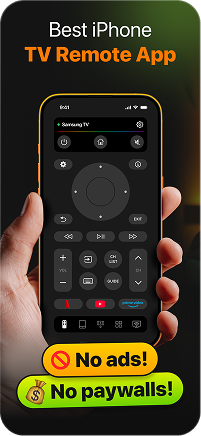
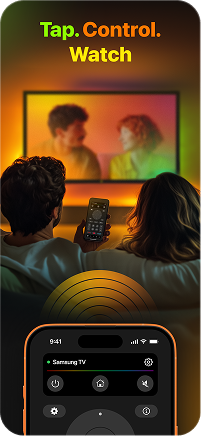
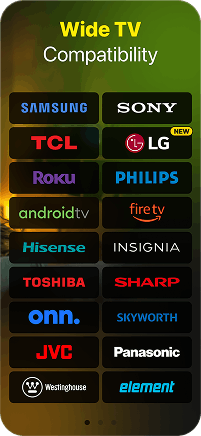
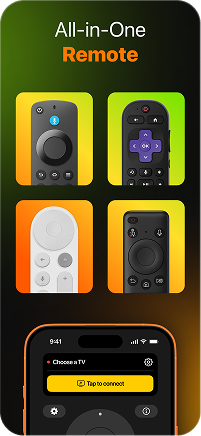
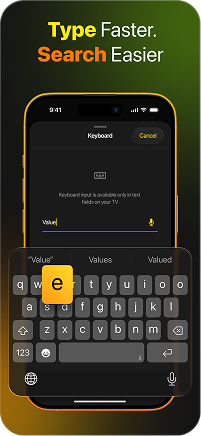
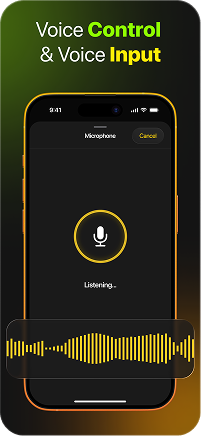
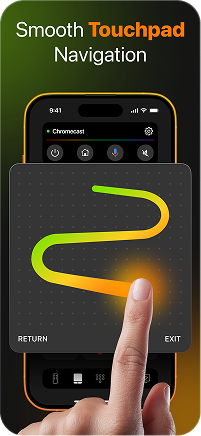



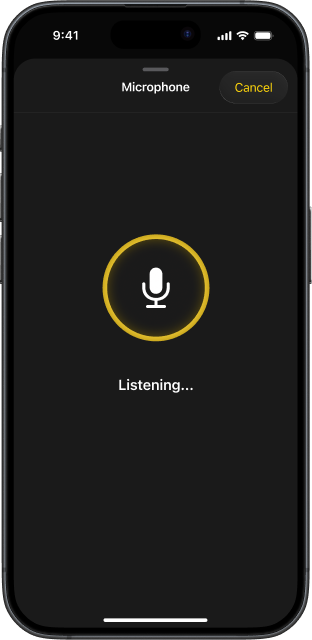

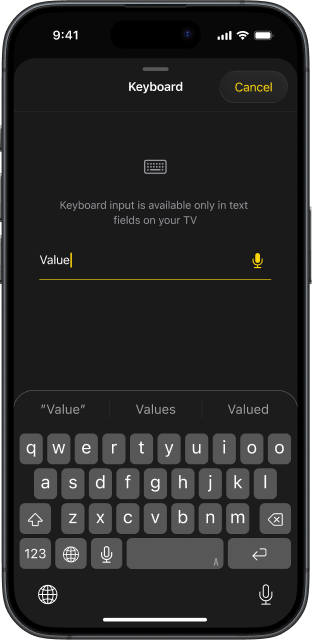



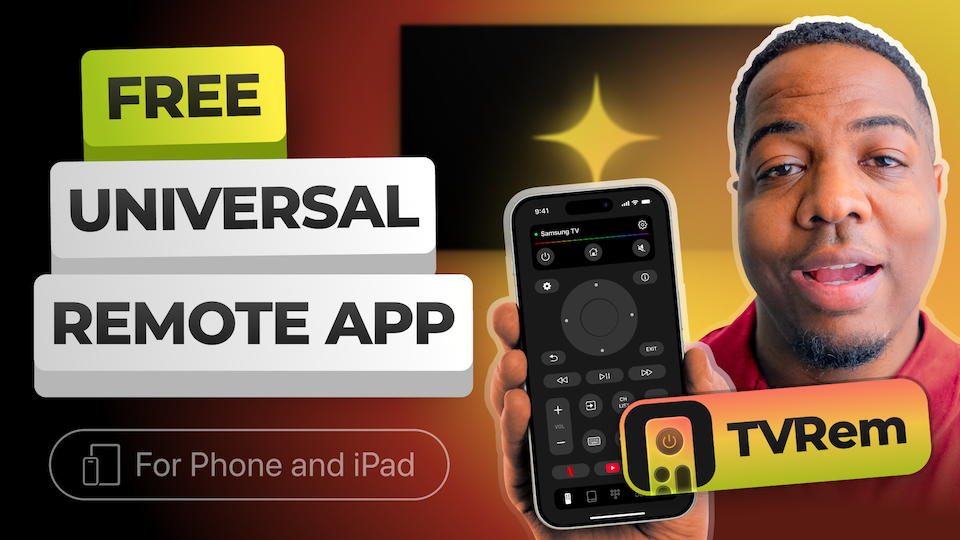
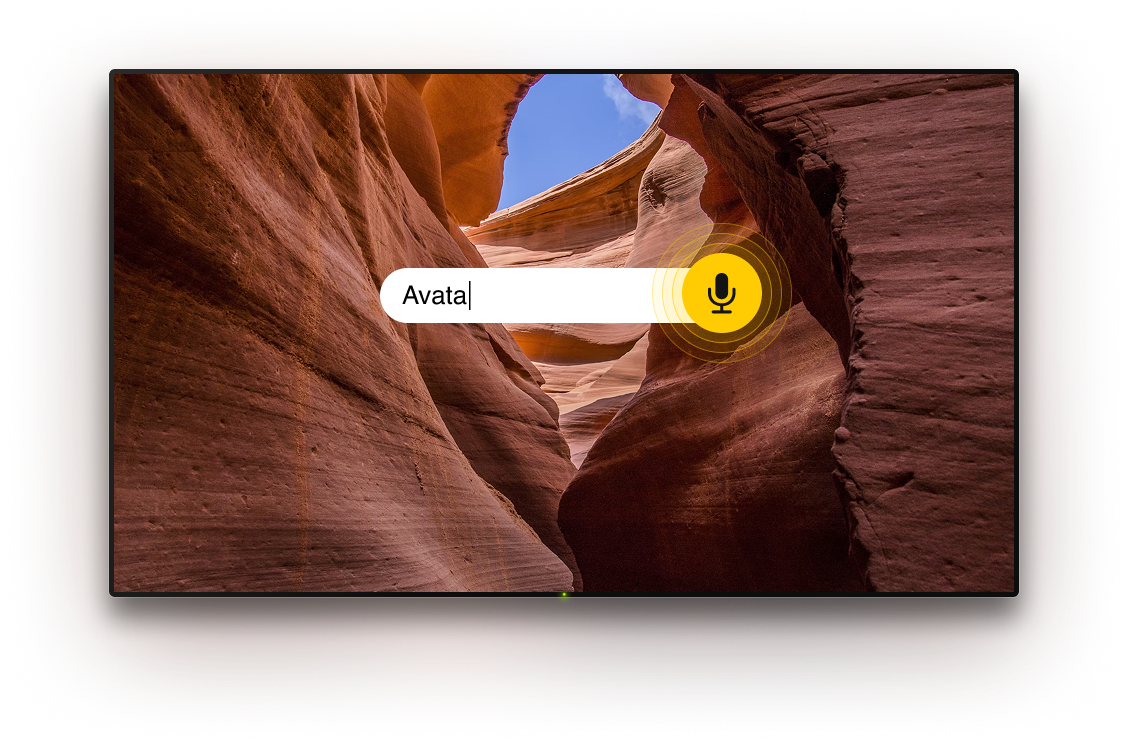
Use TVRem with Android TVs, Chromecast with Google TV, and Google TV streaming devices. Enjoy voice control through Google Assistant for quick, hands-free commands.





Pair TVRem with Fire TV sticks and boxes, Amazon Fire TV sets, and TVs with Fire TV built in. Get full remote capabilities on your iPhone or iPad – from navigation to app control.




Control Roku streaming players, Roku TVs, and TVs with Roku OS directly from one app. No need for the original remote – change channels, open apps, and manage playback right from your phone.




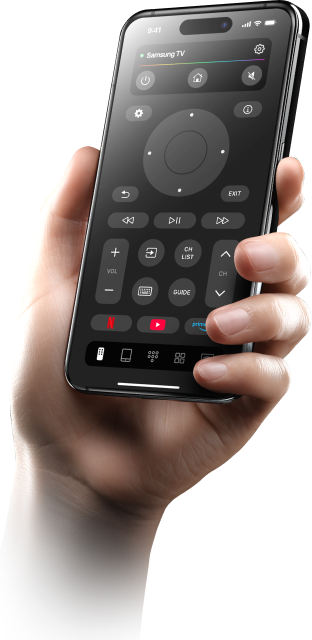
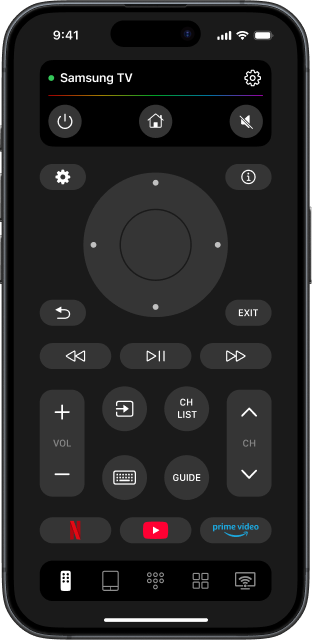
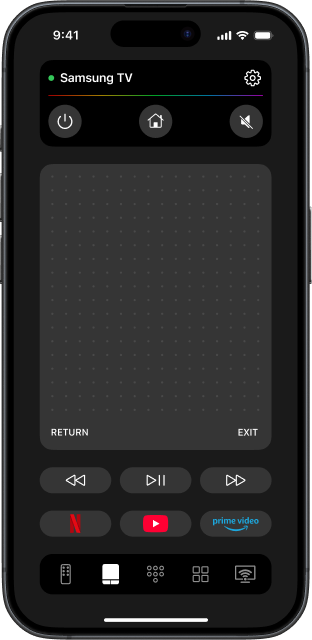
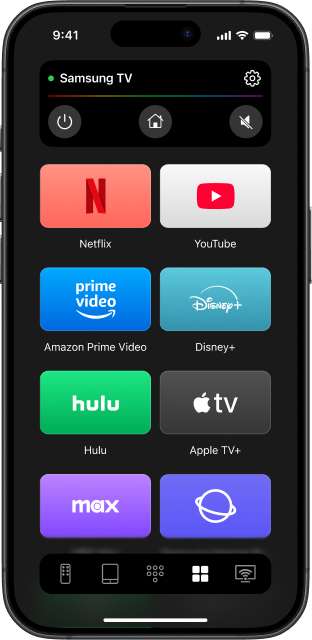
TVRem also works with LG and Samsung Smart TVs using their own operating system. Quickly switch channels, adjust the volume, and launch your favorite apps straight from your iPhone or iPad.





It’s straightforward and similar to other supported TVs:
You’ll then be able to manage your Roku directly from your iPhone.
If TVRem asks for permission on your Roku, do this on your Roku device:
Setup takes just a moment:
Once paired, your iPhone works as a full Android TV remote.